A cross-platform rule-based proxy client with rule-based routing. iPhone / iPad: $2.99 one-time purchase on the App Store; Mac, Windows, Android and Linux versions are free.
PLATFORMS iOS / iPadOS / macOS / Windows / Android / LinuxROUTING Config · Proxy · DirectRULE FIRST MATCH → FINAL
CONFIGURATION INDEX
Shadowrocket Features and settings index
Start by distinguishing connection parameters, routing modes and configuration rules. Servers determine where to connect; Global Routing determines how a path is selected; rules in Config evaluate requests one by one. These functions are not interchangeable. The common interface terms below indicate where to find settings; the options available depend on the device interface.
Rule matching and Global Routing
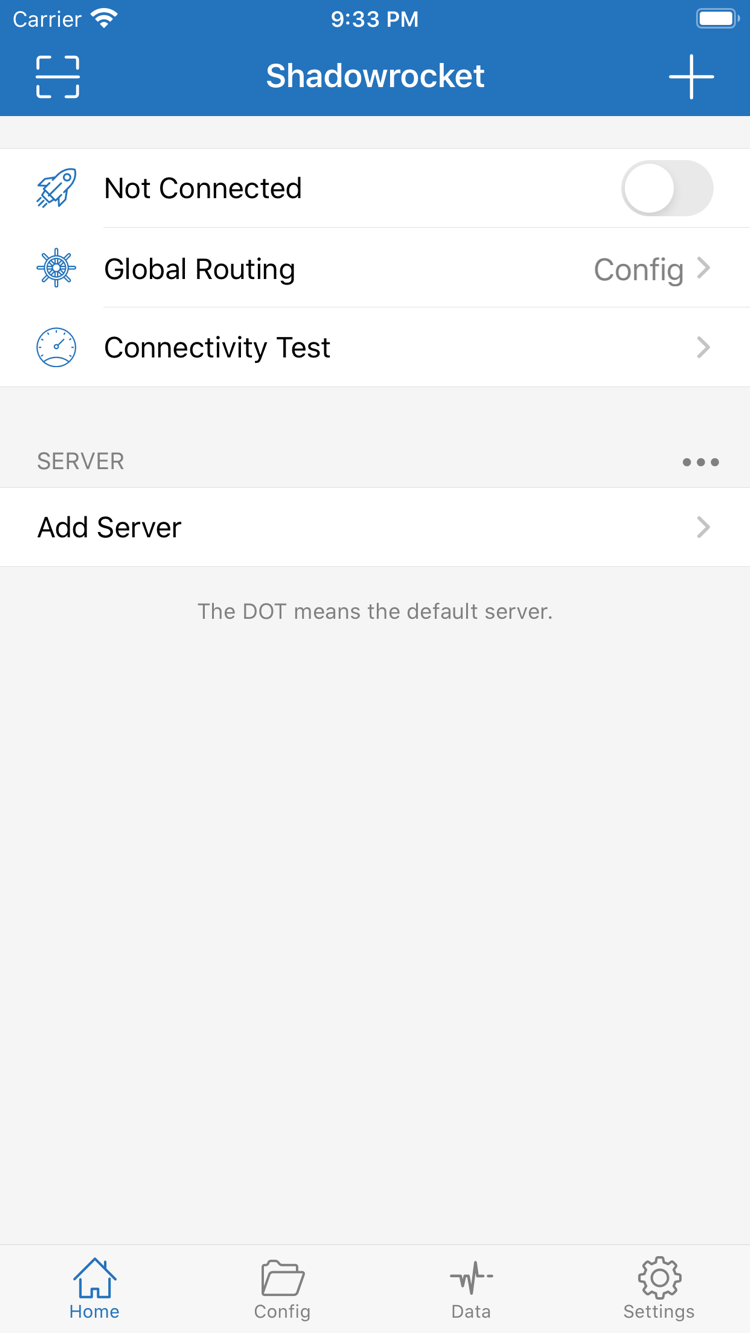
View Global Routing in Home. Config mode handles requests using the rules in the current configuration; Proxy mode sends requests through the selected proxy; Direct mode connects directly. To route traffic by rules, select Config, then check [Rule] in Config. Rules are evaluated from top to bottom. Once a rule matches, its PROXY, DIRECT or REJECT action is applied, and later rules are not checked. Put narrower conditions first and FINAL at the end as a fallback. When troubleshooting, check the mode and active configuration before changing individual rules, so parameter errors are not mistaken for routing problems.
On Demand triggers a connection based on network conditions; it does not replace the routing decisions in [Rule]. Find On Demand in Settings, review which networks each condition applies to, and then decide whether to enable it. For initial setup, connect manually and verify that an existing server works before adding On Demand conditions. If the connection turns back on after being disabled, check On Demand and the corresponding system settings rather than repeatedly deleting configurations. Recheck the trigger behavior after switching between Wi-Fi and cellular networks. A successful On Demand connection only confirms that its conditions were met; it does not mean every destination uses the same policy.
Settings → On Demand
Home → Global Routing → Config
In Add Server, select Type first, then fill in the fields for your existing service. Shadowrocket supports protocols such as Shadowsocks, VMess, VLESS, Trojan and WireGuard. Authentication details and transport settings vary by protocol and should not be mixed. In addition to Host and Port, check the password, identifier or key, as well as the required TLS and transport settings. WireGuard's private key, public key and Endpoint each serve a different purpose and should not be substituted for one another. Match each field to the original configuration, save, and test connectivity before opening a website. Changing the display name alone does not change the protocol parameters required for a connection.
Add Server → Type
Host / Port
WireGuard → Endpoint / Public Key / Private Key
To import a subscription, you must already have your own subscription or server details. In Home, use the add option, select Subscribe, paste the complete link from your service provider, then save and update. After updating, check that the groups and entries appear, and verify which server is selected. Subscription links may contain authentication details; do not include them in public screenshots or troubleshooting discussions. If an update fails, check that the link is complete and still valid, and that your current network can access its address. Updating a subscription and connecting to a server are separate steps; a successful update does not mean every entry will work.
Home → Add Server → Subscribe
Save → Update subscription → Select server → Verify connection
Config manages settings such as rules and DNS; it is separate from the server list in Home. After importing a file, make sure the correct configuration is selected, then review sections such as [General] and [Rule]. Keep a restorable copy before making changes, and change one type of setting at a time so you can compare results. For iCloud sync, check that the same account and required permissions are in place on devices that support the feature. Wait for syncing to finish, then inspect the file contents; syncing does not automatically enable the configuration on another device. Config files may contain sensitive addresses, so check server details and authentication fields before sharing.
Check connectivity, resolution and traffic separately
Connectivity Test in Home checks the connection. Diagnostics in Settings provides further troubleshooting options, while Data can help you observe traffic changes. Interpret results in the context of the test method: a single latency result does not prove that all websites are accessible. If a page will not load, check server parameters, the current mode, matching rules and DNS in that order, and note the network where the issue occurred. Data statistics are not the same as billing records from a service provider. When reporting a problem, include only the necessary error details, hide subscription links, passwords and keys, and describe steps that reproduce the issue.
Connectivity Test → Connection check
Diagnostics → Troubleshooting details
Data → Traffic monitoring
Config → DNS and [Rule]
Two ways to get Shadowrocket: iPhone / iPad from the App Store for a one-time $2.99 purchase; Mac (Apple Silicon and Intel), Windows, Android and Linux versions are free. Check your device and processor type, then open the relevant download section. Desktop, Android and Linux installation packages are available on this site's download page at /dl/shadowrocket/.
Check the app name, developer and app ID on the App Store product page before purchasing and installing. iPhone and iPad share the purchase. System requirements are as listed on the App Store page. Whether the app appears in the store depends on the country or region of your account, not the language currently displayed on your device.
After opening the app for the first time, you will also need to import your existing service details. Purchase history, connection parameters and configuration files are separate items. Check each one when changing devices; reinstalling the app does not restore its configuration automatically.
Free · Apple Silicon / Intel; iPhone / iPad $2.99 once
Open About This Mac and check the Chip or Processor information to choose the Apple Silicon or Intel version. The download page provides separate installation buttons for the two architectures. Do not infer your chip type from browser detection.
If you see “Cannot verify developer” on first launch, confirm the file came from this site, then check “Open Anyway” in Privacy & Security. If you see a “damaged” warning, follow the specific steps on the download page instead of repeatedly trying an incompatible architecture.
The download page provides a 64-bit Windows installer. Check your system type before saving and running the file. If SmartScreen appears, confirm the download source and file name, then select “More info → Run anyway” to continue. Devices managed by an organization may also be subject to administrator settings.
After installation, check separately that the client opens, service details have been imported and the current mode is correct. A system block occurs during installation; a website that will not load is a connection issue. Record them separately to avoid treating two different problems as one.
Get the arm64 installation package from this site's download page. If Android asks for permission to install apps, enable “Allow from this source” in Settings for the app you are using to open the installer. You can revoke this permission afterward if you wish; there is no need to enable it for every app.
If a download will not continue inside WeChat, follow the prompt to open this site in your system browser. Saving the file and installing it are separate steps, so check the system's installation result after the download finishes. When a system permission request appears on the first connection, review its explanation before confirming.
Free · deb / rpm / AppImage; iPhone / iPad $2.99 once
Choose deb, rpm or AppImage based on your distribution's package management, and check the architecture listed on the download page. Do not identify a format by its file icon alone or install multiple formats to troubleshoot the same connection issue.
AppImage requires execute permission on first run; install deb and rpm packages with the corresponding package manager. The download page lists the relevant commands and system permission instructions. Complete the installation checks before importing existing server details. Keep your current configuration before upgrading, then verify which configuration file is active.
These concise steps are for iPhone / iPad. Before you start, prepare your own subscription link or server parameters, and make sure your current network works normally. Change one setting at a time. If something goes wrong, checking the previous step is more likely to pinpoint the cause than refilling every field at once.
01 / ADD SERVER
Add your existing service details
In Home, open Add Server. To add details manually, select Type first, then enter Host, Port and authentication fields. To import an existing subscription, select Subscribe. You can also choose Scan QR Code if your existing information is available in that format. When finished, check that the expected entry appears in the SERVER group and select a server.
An entry name is only a label; it does not confirm connectivity. When copying parameters, check for leading or trailing spaces, the port and protocol type. If a subscription update fails, check the original link instead of repeatedly trying other protocols. This site does not provide servers or subscriptions; the instructions assume you already have your own details.
02 / GLOBAL ROUTING
Choose how requests are handled
Return to Home and check Global Routing. To route traffic by rules, select Config mode and confirm that a suitable configuration is enabled in Config. Proxy and Direct modes can help distinguish the proxy path from a direct path; they are not three ways to write the same rule.
Importing a server does not mean every request will automatically use the proxy. The mode, rules and selected server together determine the actual path. Note the original settings before changing a configuration, then restore the mode you intend to use after testing. This helps prevent temporary diagnostic settings from becoming your everyday configuration.
03 / CONNECTIVITY TEST
Connect and verify
Turn on the connection switch at the top of Home. On the first connection, read and confirm the system VPN configuration request, then use Connectivity Test to check the connection. Visit a specific test destination and check the mode and relevant rules. A connected status only indicates the connection state; it does not guarantee access to every destination.
If the latency test succeeds but a page will not load, continue by checking DNS, destination rules and service parameters. Record the network, test method and exact symptoms. Hide authentication details before sharing logs. Do not delete multiple servers or reset all settings based on a single test result.
Shadowrocket is a closed-source commercial app. This is the official manual for Shadowrocket Manual; this site is the official website. To verify where to get the app, check the App Store product details for iPhone / iPad, and check this site's download page and /dl/shadowrocket/ file paths for Mac, Windows, Android and Linux. Do not rely on name similarity in search results.
Developer: Shadow Launch Technology LimitedApp ID: 932747118Two ways to get it: iPhone / iPad $2.99 once · Other platforms free
Check the developer, then compare the icon and app ID
To verify the iPhone / iPad app, check three details: the developer is Shadow Launch Technology Limited, the icon matches the official icon provided on this site, and the product page app ID is 932747118. A matching Shadowrocket name alone is not enough to confirm the app's identity. Search results may include similarly named listings, so open the full product page and read the developer information instead of relying on the first search result.
Check the price for the relevant platform too: iPhone / iPad is a one-time $2.99 App Store purchase; Mac, Windows, Android and Linux versions are free. A free listing with the same name in the iPhone / iPad App Store is not the product described here. Free versions for other platforms should be downloaded from this site's download page; do not treat both access options as the same process.
If you cannot find the app, check your store account
App Store content depends on the country or region associated with your account. If the app is unavailable in the mainland China store, changing your device language, keyboard or time zone will not change your store region. Check the country or region in your account settings, then open the product page to see whether it is available in your current store. Before changing regions, review Apple's requirements for account balance, subscriptions and payment details, and follow Apple's account settings process.
Before purchasing, check which account is being used for the App Store so you do not confuse your device account with your store purchase account. System requirements are as listed on the App Store page; being able to open the product page does not mean your device meets the installation requirements. See the installation guide for verification steps and common download issues.
Check purchase history and device restoration separately
iPhone / iPad is a one-time $2.99 purchase, shared by both device types; Mac, Windows, Android and Linux versions are free. When changing devices or reinstalling, find Shadowrocket in the purchased items under the original purchase account and download it again. If the page still shows a purchase price, check the account, region and purchase history before considering another payment. Check the product page and the available family settings for whether Family Sharing applies and how to set it up.
Restoring purchase history restores access to the app; it does not necessarily restore server lists, subscription links or configuration files. Save any necessary configuration before reinstalling, then check sync status and the active file on the new device. Store materials containing authentication details somewhere you control; do not share complete subscription links, private keys or passwords when asking for help.
App updates and subscription updates are different
Update the iPhone / iPad app through the App Store. Mac, Windows, Android and Linux users can get the latest installation package from this site's download page and follow the platform-specific update instructions. An app update changes the client software; a Subscribe update changes the entries returned by an existing subscription; a Config update changes configuration content. Completing any one of these does not replace checking the other two.
If connection problems occur after an update, note the current mode, selected server and enabled configuration, then check whether the existing parameters are still valid. Follow the download page's instructions for system prompts during installation. For connection issues, check the protocol, rules and DNS. A website temporarily failing to load does not mean you need to purchase the app again.
READING NOTES
Tips and in-depth guides
After your first connection, read the guide for the specific issue you encounter. Parameter guidance, DNS troubleshooting and account region address different layers of a problem; there is no need to change every setting at once. The latest three articles are listed below by publication date. Browse the article index for rule order and desktop installation guides.
Learn how the country or region associated with your Apple Account determines store listings, and how to check your account's store in iPhone Settings and the App Store.
Learn the difference between connectivity tests and domain name resolution, what DNS settings mean, and how to troubleshoot resolution failures and pages that will not load.